How I Install Minecraft Java Texture Packs in 2026
Install Minecraft texture packs manually in Java Edition with this simple Overflow pack guide—no extra programs required.
I still get a small thrill when a familiar Minecraft world suddenly looks brand new. In 2026, Minecraft Java Edition remains wonderfully stable in its core look, yet the resource pack scene is as lively as ever. I install texture packs manually, and I do not need any extra programs to make them work. I do need a little patience and enough disk space, because some packs are surprisingly large. My process is simple: prepare a folder, download the pack, extract it, copy it into Minecraft, select it, and test it. This guide is specific to Java Edition, and it reflects the flow I still use today, using the Overflow texture pack as my working example.
Before I touch Minecraft: prepare a folder
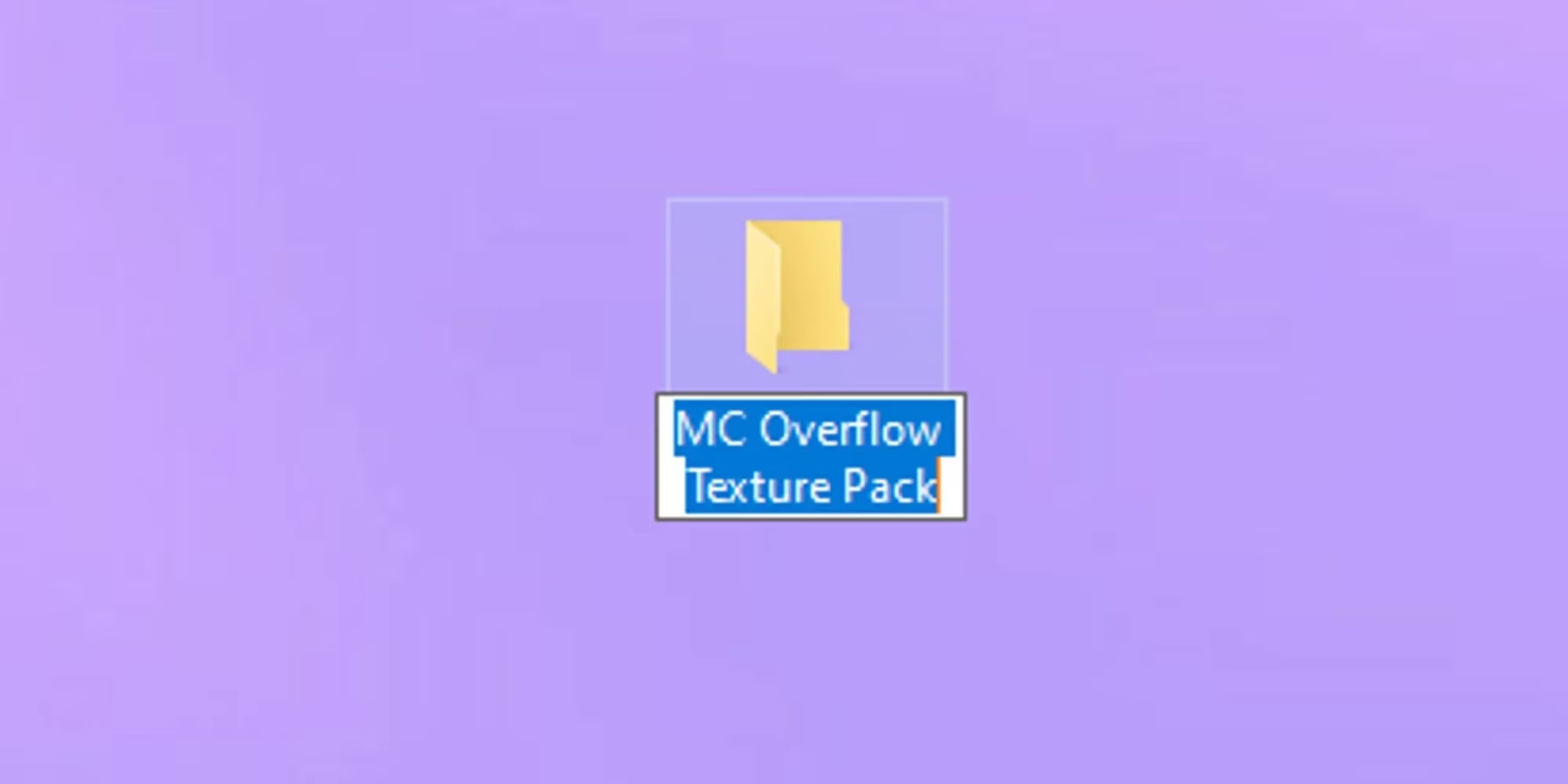
I always begin away from the game. First, I create a dedicated folder for the pack I plan to use. For this walkthrough, I name it MC Overflow Texture Pack. That small step keeps my desktop tidy and makes the next part much easier to follow.
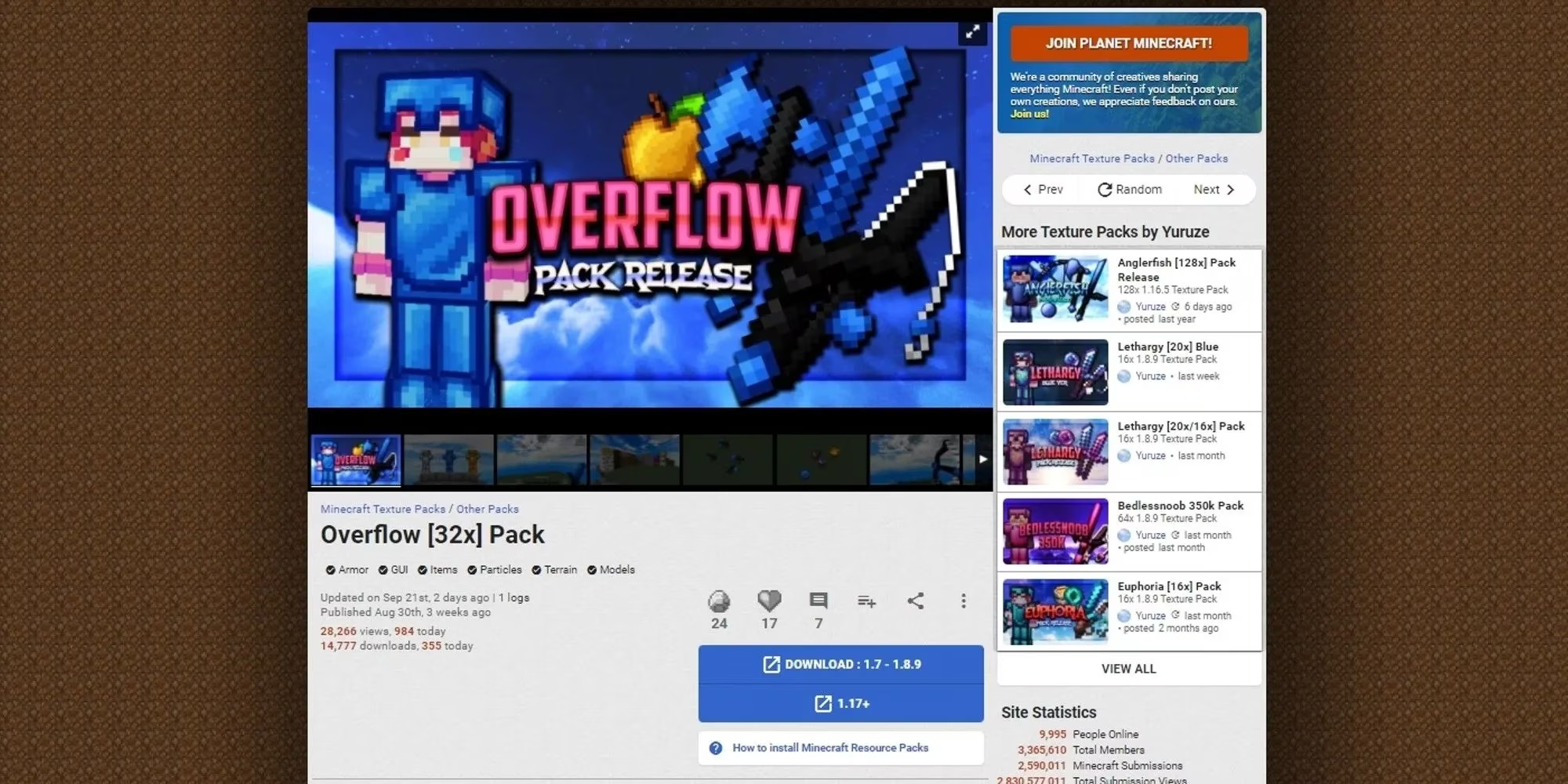
Next, I find a texture pack I actually want to try. There are many community sites and repositories, and Planet Minecraft is one of the most familiar places to browse packs and read player reviews. I download the pack and save it directly into the folder I just created. I also check the pack description for the Minecraft version it targets, because a pack built for an older format may still work while showing a compatibility warning.
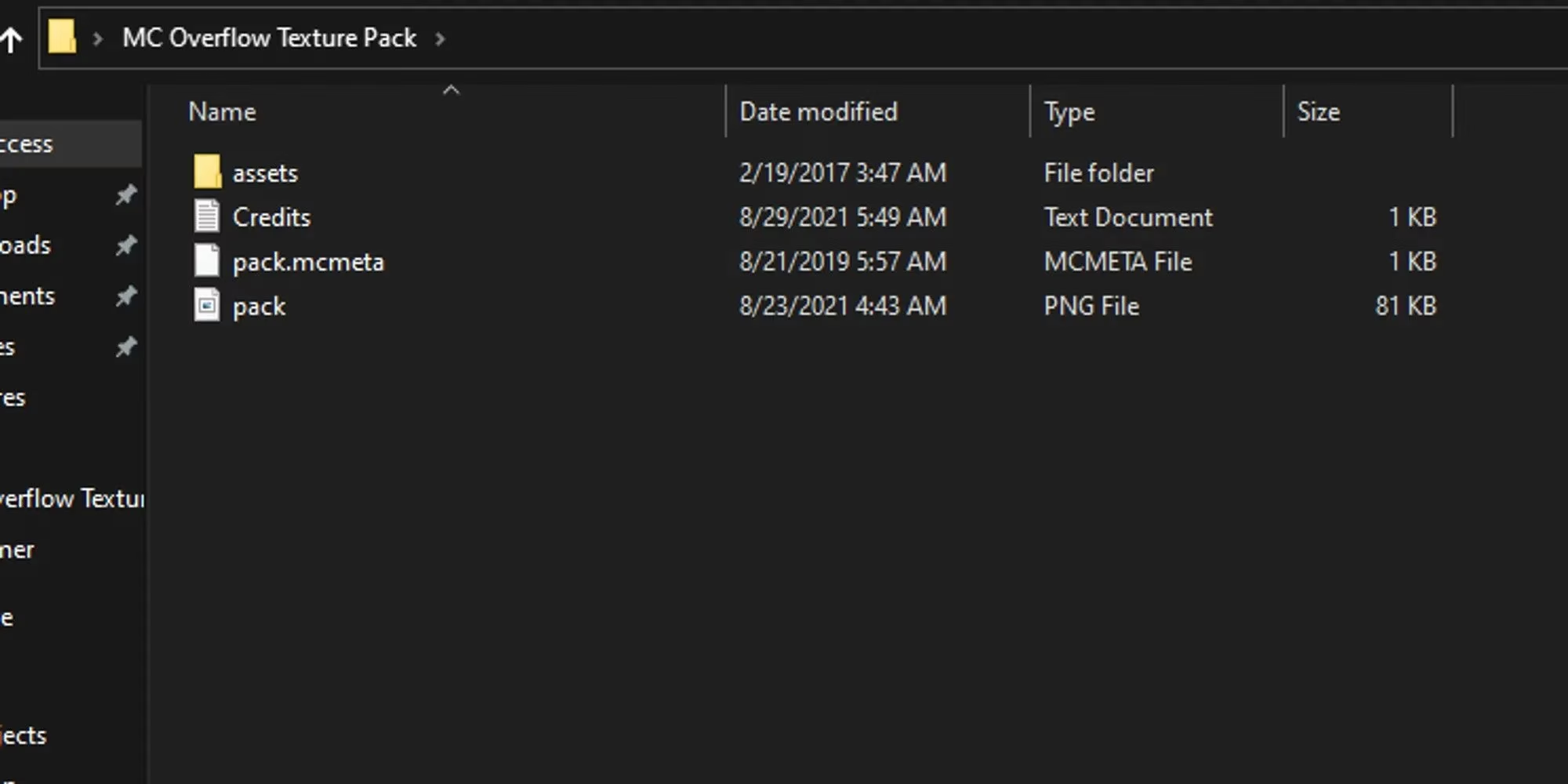
Once the file is downloaded, I right-click the .zip file and choose Extract Here. After the extraction finishes, I delete the original .zip file. What remains is a folder full of pack files, including assets, pack.mcmeta, and often a pack.png preview image. That folder is the part Minecraft needs.
The five-minute installation
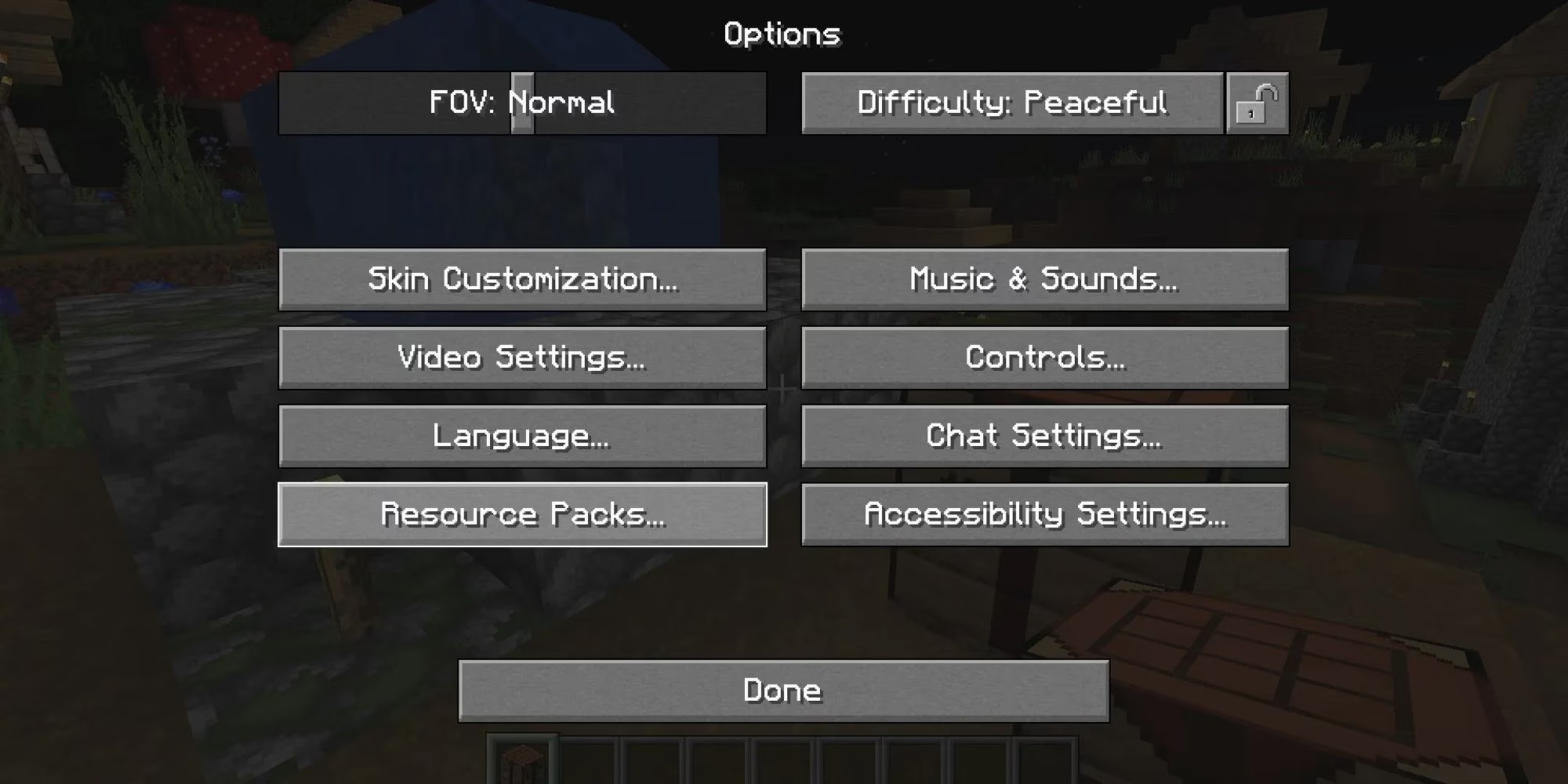
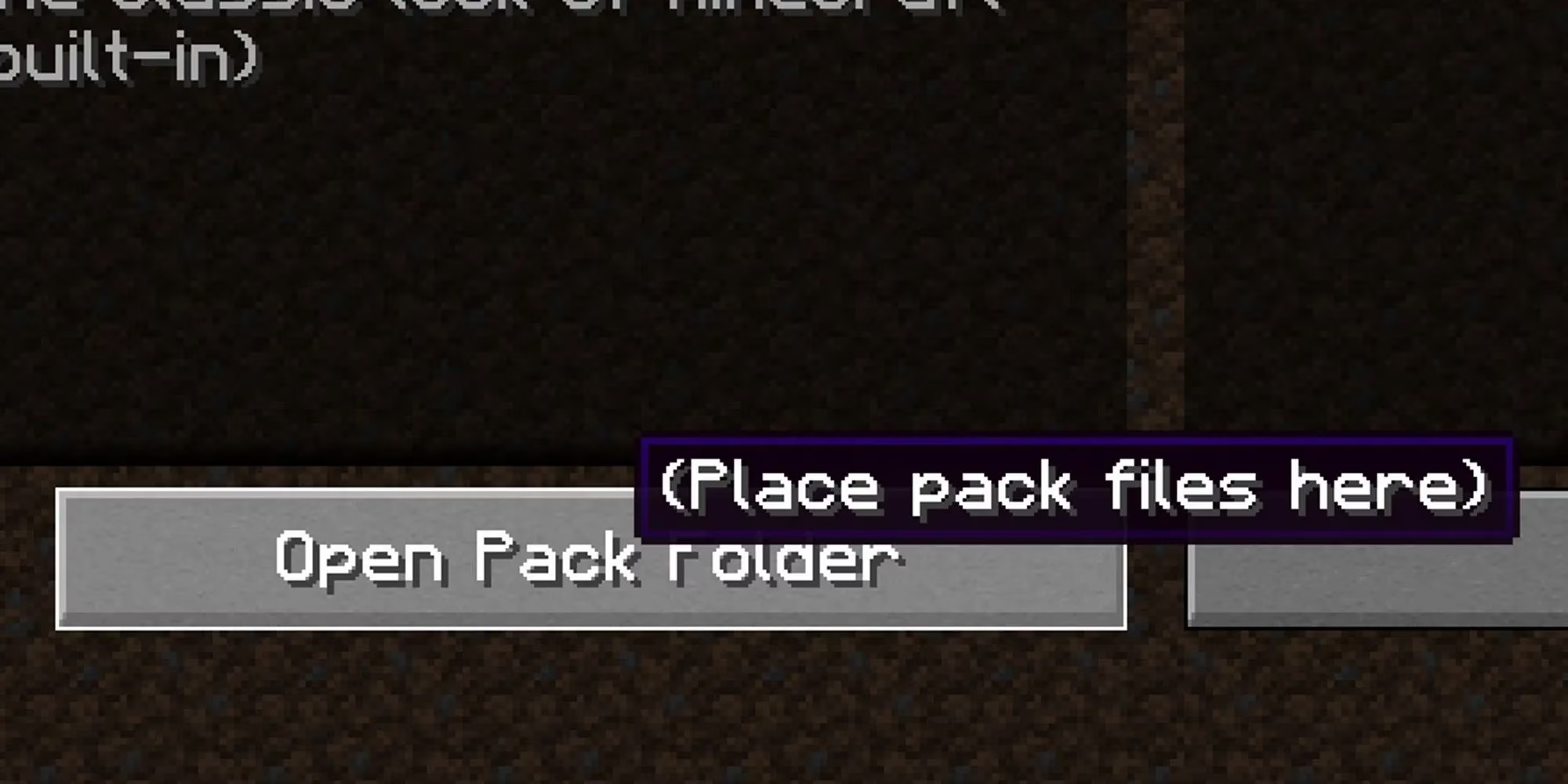
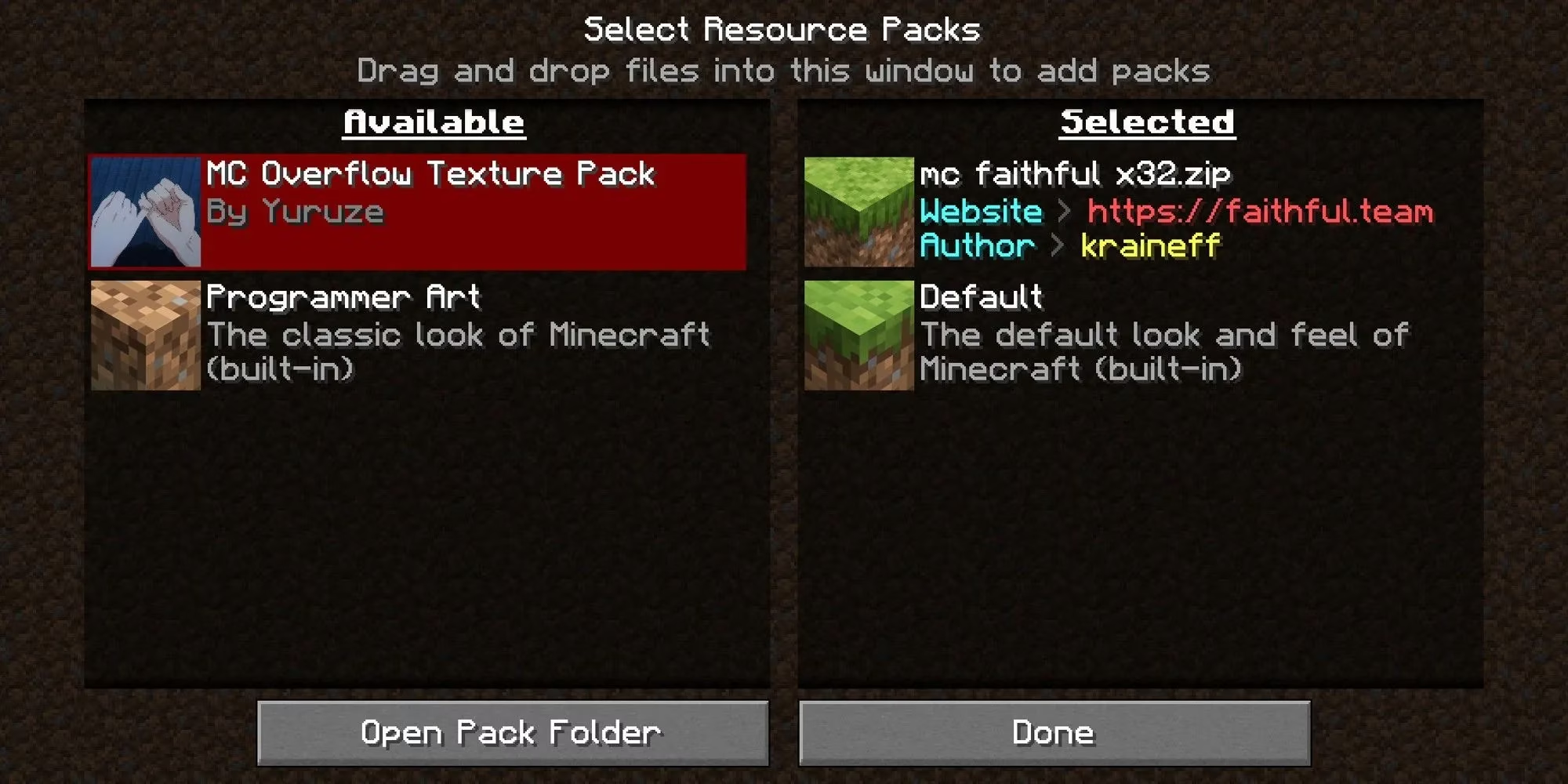
Now I open Minecraft Java Edition. From the main menu, I select Options, then Resource Packs. The resource pack screen has two columns: available packs on the left and selected packs on the right. At the bottom is a button labeled Open Pack Folder. I click it, and a file explorer window opens.
I paste the entire texture pack folder into that window. Then I close the file explorer and return to Minecraft. My new pack should appear in the left-hand column. If it appears in red, that means it is not fully compatible with my current Minecraft version. That is not an automatic failure. Many packs still work comfortably even when they are missing a few textures or metadata details.
When I hover over the pack, an arrow points to the right. I click that arrow, and the pack moves into the selected column. If another pack is already active, I move it back to the available column so the new one can take priority. With my chosen pack at the top of the selected list, I press Done. Minecraft reloads, and the new textures appear.
What I check when a pack looks wrong
Sometimes a pack loads, but something feels off. I check a few things before I blame the pack. I confirm that I am using Java Edition, not Bedrock. I compare the pack version with my game version. I look for missing textures in menus, blocks, or items. I also test performance, because high-resolution packs can be heavy on older computers. If I use shaders, I temporarily disable them to see whether the conflict comes from the pack or the shader setup.
| Check | What I do |
|---|---|
| Version mismatch | I test the pack anyway, then remove it if it crashes |
| Red compatibility warning | I expect minor gaps, not instant failure |
| Missing textures | I check for updates or try a lower-resolution pack |
| Performance drops | I switch back to 16x or 32x textures |
| Shader conflicts | I disable shaders and retest |
My recommended packs for 2026
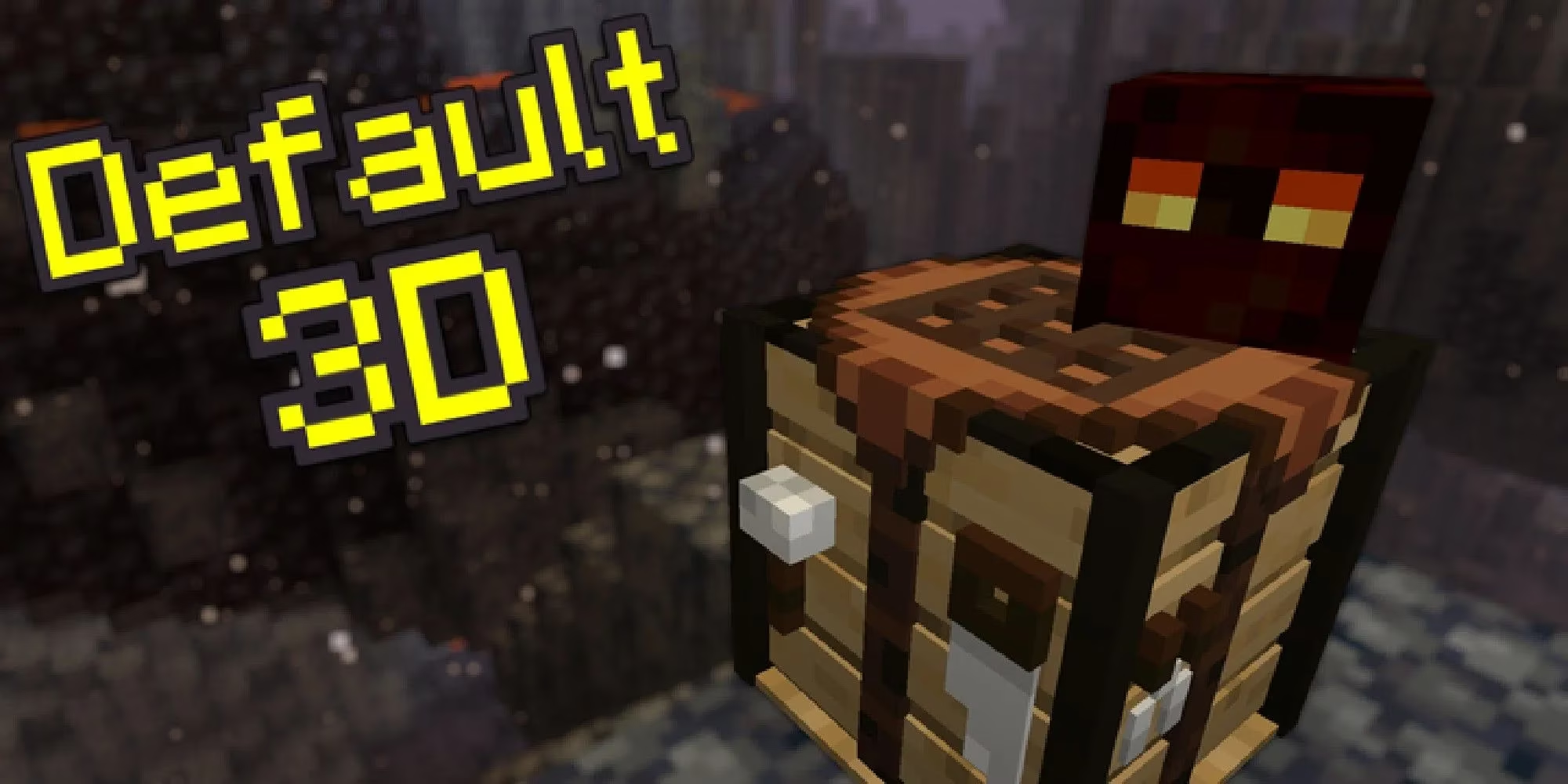
I like variety, so I keep a short list of packs I return to. Overflow is the pack I used in this guide, and it is a good example of a clean visual refresh. Faithful 32x32 stays close to vanilla while adding sharper detail. Default 3D gives blocks and items a subtle depth that feels natural. Chroma Hills leans richer and more painterly. Depixel offers a crisp, modern look. Sphax PureBDCraft remains a bold cartoon-style choice.
Safety and final thoughts
I treat texture packs like any other file I bring into my game. I use trusted community sources, I avoid executable files disguised as packs, and I keep backups of my worlds. Texture packs are cosmetic, so they should never put my saves at risk. If a pack feels unstable, I remove it and move on. Minecraft is still fun with default textures, and that is the best safety net of all.