Mastering Minecraft Console Commands: A 2026 Guide to World Control
Mastering the essential Minecraft console commands unlocks limitless creative potential, transforming your gameplay from a survival grind into a world of ultimate control. This guide reveals the simple secrets to enabling cheats and wielding powerful commands in both Java and Bedrock Editions.
As a player who has spent countless hours in the blocky realms of Minecraft, I've come to realize that the true magic of this sandbox game often lies beyond the surface of mining and crafting. The chat window, a seemingly simple interface, is in fact a powerful console that grants me, and any player, the ability to bend the very rules of the world. Whether I'm exploring the vast Java Edition or the cross-platform Bedrock Edition, this console is my key to ultimate control. From instantly teleporting across continents to summoning a herd of friendly llamas for a spontaneous parade, the possibilities are as limitless as my imagination. This power allows me to transcend the traditional survival grind and take direct, creative charge of my world, shaping it not just with blocks, but with commands.
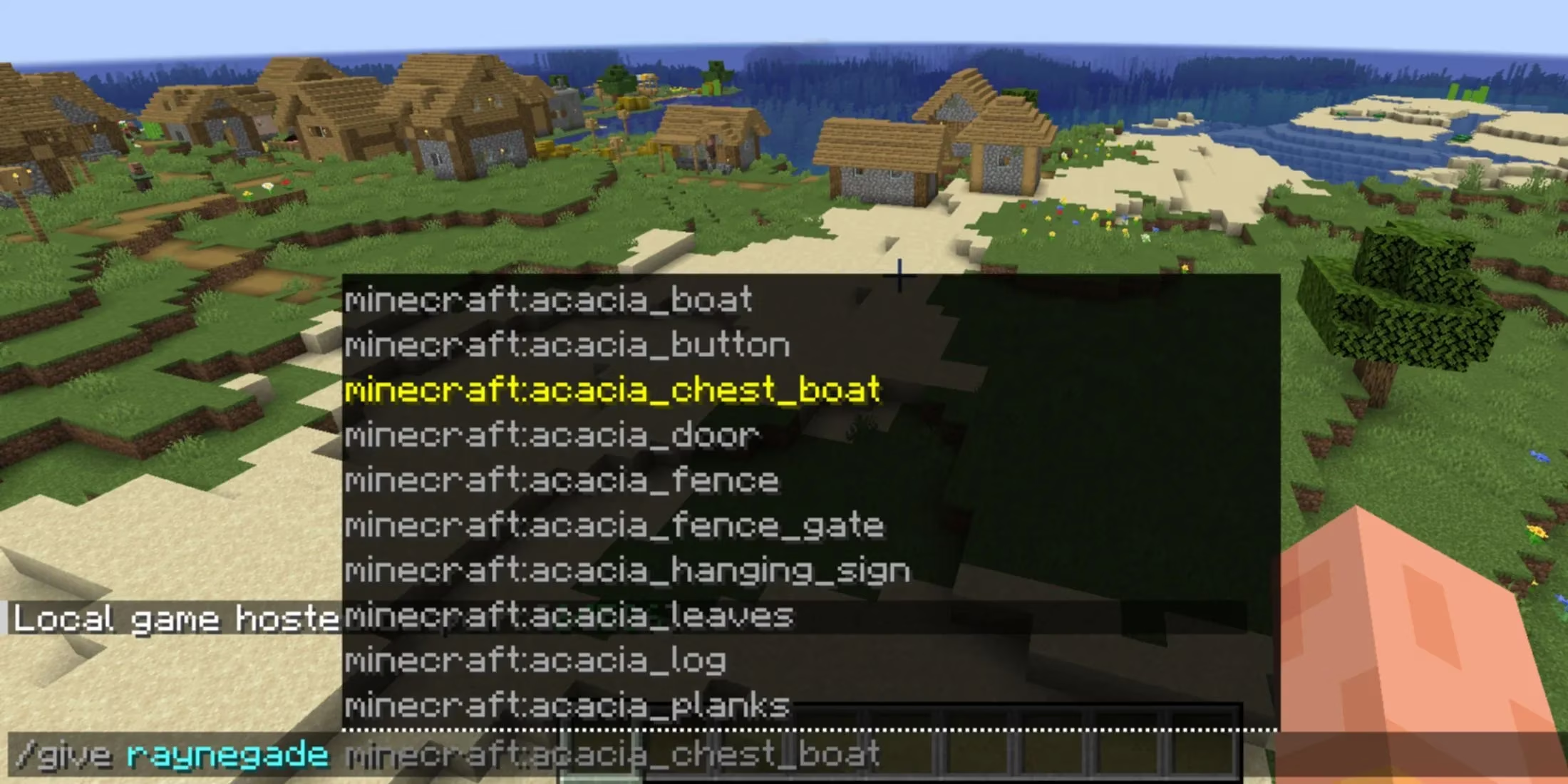
Activating this power is beautifully straightforward. In both editions of the game, I simply press the T key to open the chat window. This is where the incantations begin. Every command must start with a forward slash—/—followed by the specific text prompt. It feels like speaking a secret language to the world itself. The chat box is helpful, often suggesting commands as I type based on that first letter after the slash, guiding me through the vast lexicon of available actions.
However, wielding this power requires a bit of setup and understanding. I can't just start typing commands in any world. I need the proper permissions. In my single-player worlds, the first step is always to ensure "Allow Cheats" is enabled. The process differs slightly between editions, which is a key detail I've learned to remember.
For my Bedrock Edition worlds (on console, mobile, or Windows 10/11), I dive into the Game tab within the settings menu. Scrolling down, I find the Cheats section—a gateway to enabling creative flight, keeping my inventory, and, most importantly, unlocking the console's full potential. Toggling this on is my ticket to command mastery in that specific world.
Java Edition, the classic version I often play on my PC, has a slightly different, more dynamic method. If I've already started a survival world and decide I need some administrative help, I don't have to restart. I simply press Escape to open the pause menu, click "Open to LAN," and then I see the crucial toggle: "Allow Commands." Flipping this on and clicking "Start LAN World" temporarily grants me command access for that session. It's a perfect solution for when a creeper destroys my hard-built house and I need a quick /gamerule mobGriefing false to prevent future tragedies!
🎮 Essential Command Setup Checklist:
-
Open Chat: Press
T. -
Start Command: Always begin with
/. -
Enable Cheats (Bedrock): World Settings > Game > Cheats.
-
Enable Commands (Java): Pause Menu > Open to LAN > Allow Commands > Start LAN World.
Now, what if I want to automate my power or create incredible contraptions? This is where the Command Block becomes my most valuable tool. This special block, which doesn't appear in the creative inventory by default, is the engine for complex, redstone-activated commands. I can obtain one using the very console it's designed for, with the command /give @s command_block.
Placing this mysterious, stone-like block with its interface buttons on the ground is just the beginning. Right-clicking it opens its own programming console—a dedicated space for my command scripts. I type the desired command into the "Console Command" text box, click Done, and then connect it to a simple lever or pressure plate. The moment I flip that switch, the command executes. I've used this to create automatic welcome gates that give players items, hidden doors that only open with a secret phrase typed into a chat trigger, and even elaborate adventure maps with custom events.
Of course, with great power comes the need for great knowledge. The console is logical but strict. If I type an incorrect command, use a non-existent player name, or try to summon an entity with the wrong data tags, it will fail. The chat window will give me a red error message, a gentle reminder that I need to check my syntax. The most common issue I faced early on, especially on multiplayer servers, was a lack of permissions. Even with the correct command, if I'm not an operator (op) on a server, the game will simply refuse to run it. Learning the essential commands is the first step to avoiding these frustrations.
Here’s a quick reference of fundamental commands that have saved me hours of work and enabled incredible creations:
| Command | Primary Function | Example Use Case |
|---|---|---|
/tp |
Teleport self or others. | /tp @s 100 64 200 to instantly travel. |
/give |
Spawn items into inventory. | /give @s diamond 64 for a stack of diamonds. |
/summon |
Create any entity or mob. | /summon cat ~ ~ ~ {Owner:MyName} for a pet. |
/gamemode |
Change player mode. | /gamemode creative @a to make everyone creative. |
/gamerule |
Alter fundamental world rules. | /gamerule keepInventory true to stop item loss on death. |
/time set |
Control the day/night cycle. | /time set day to instantly skip the scary night. |
/effect |
Apply status effects. | /effect give @s strength 60 2 for 2 minutes of Strength II. |
In 2026, the command system remains one of Minecraft's most robust and developer-supported features. For server admins, this console is the control panel for their entire community, allowing them to manage players, protect builds, and create unique experiences. For a solo player like me, it's a toolbox for creativity and problem-solving. It turns constraints into suggestions and allows the story of my world to be written not just by my actions, but by my direct will. Mastering the forward slash (/) is, in many ways, the final step in graduating from a resident of the Minecraft world to its architect and storyteller.