Minecraft Debug Screen: A 2026 Guide to F3, Chunks, and Hidden Data
Minecraft debug screen and F3 shortcuts reveal coordinates, chunk borders, hitboxes, light levels, and performance data for precise Java play.
In Java Edition, the debug screen is one of Minecraft’s quietest power tools. It does not swing a sword or place a block; it simply opens a window onto the world’s hidden math. Pressing F3 summons a dense overlay of coordinates, chunk data, entity counts, light levels, memory stats, and local difficulty. For speedrunners, technical builders, and ordinary survival players alike, that little wall of text can turn guesswork into precision. As of 2026, the classic F3 overlay remains a staple of Java Edition play, even as Bedrock Edition handles diagnostics through different built-in settings. The screen is not mandatory, and some players avoid it to preserve the mystery, but it is hard to deny its usefulness. Minecraft keeps its cards close to its chest; the debug screen politely asks to see the hand.
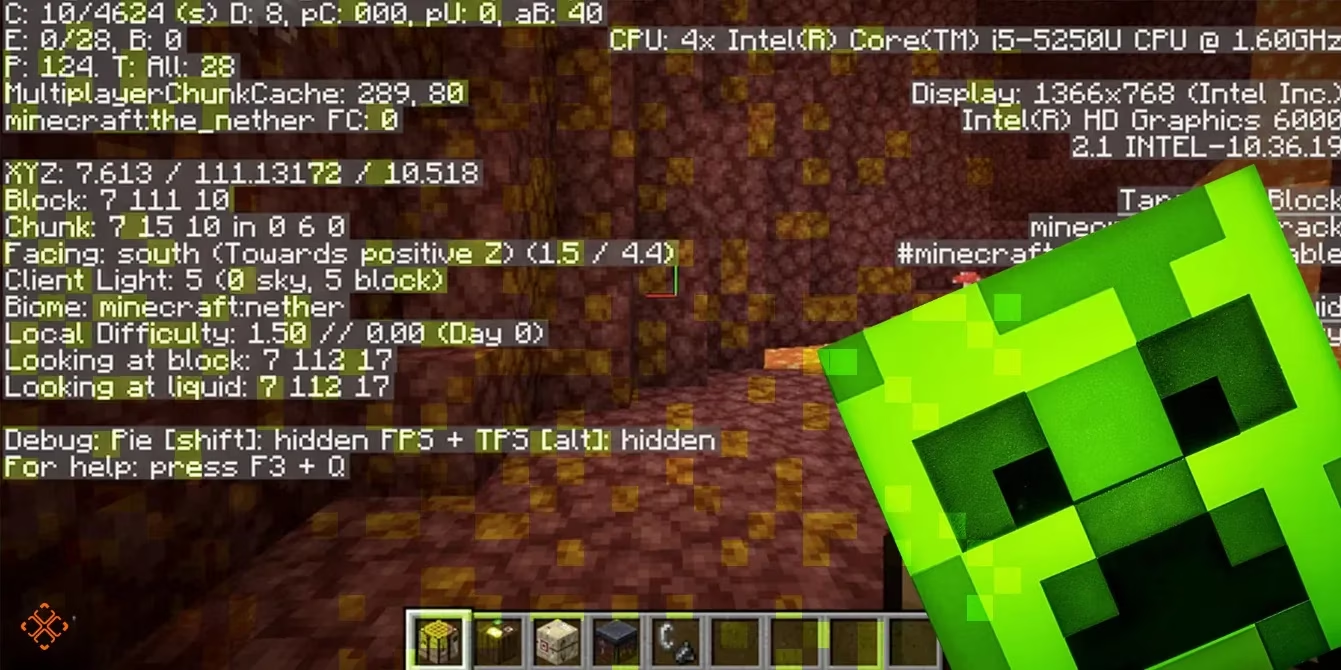
What F3 Opens
The overlay is packed with basic information, including the current Minecraft version and even details about the player’s CPU and GPU. It also acts as a gateway to several additional keybinds. These shortcuts are simple, but they solve very specific problems. The overlay does not judge; it reports.
| Shortcut | What it does | Best use |
|---|---|---|
| F3 | Opens or closes the debug screen | Quick checks of position, biome, light, and performance |
| F3 + A | Reloads chunks within render distance | Fixing stubborn loading or visual errors |
| F3 + B | Shows hitboxes for mobs and entities | Combat practice and entity inspection |
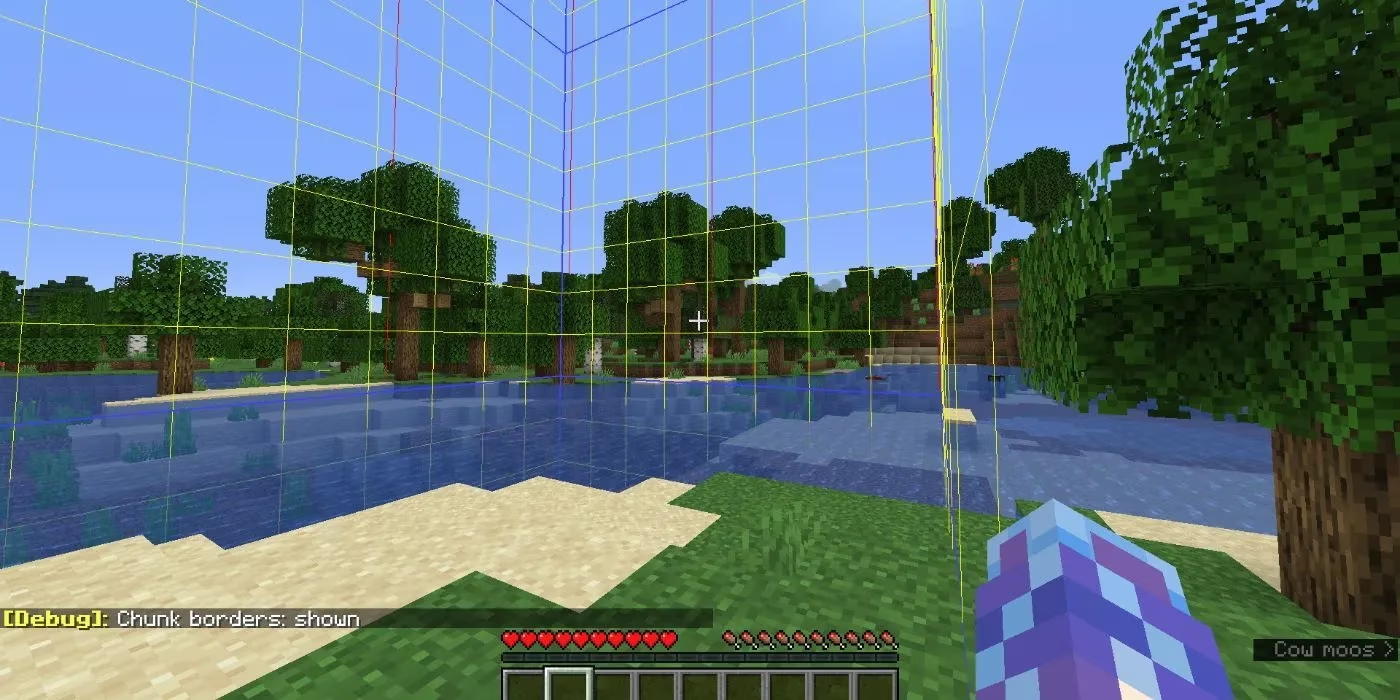
| F3 + G | Shows chunk borders in real time | Slime chunks, farms, and precise builds |
| F3 + T | Reloads the resource pack | Testing texture packs without restarting |
Chunk reloads are a lifesaver when the world refuses to cooperate. Hitboxes are useful for players who are still learning combat timing. Chunk borders matter because Minecraft worlds are built from 16 by 16 block areas, and some resources, most notably slimes, care deeply about which chunk they are in. Resource pack reloads are a small convenience, but they keep texture testing smooth.
The Readouts That Matter Most
The debug screen is dense, but not every line deserves equal attention. A few readouts are especially practical.
| Readout | Meaning | Practical use |
|---|---|---|
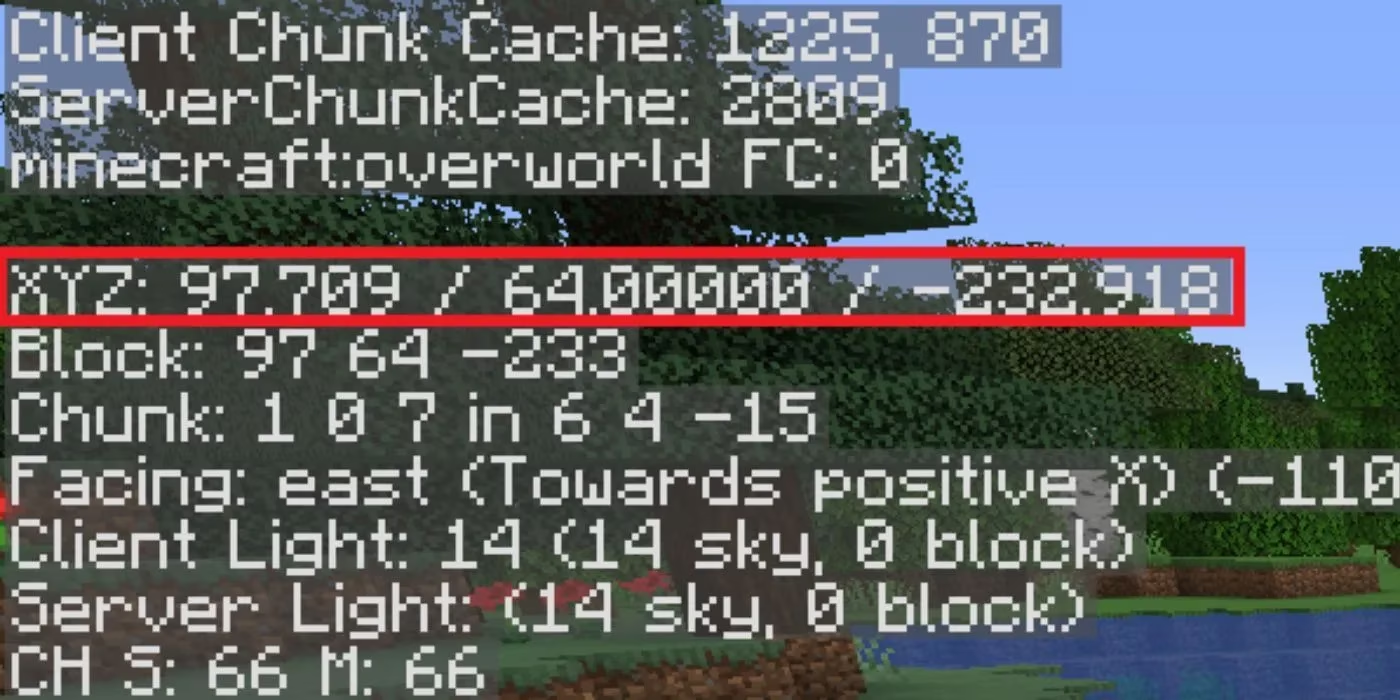
| XYZ | East-west, height, and north-south position | Navigation, mining, mapping, and returning to important spots |
| Facing | The direction the player is looking | Reading maps correctly and following treasure directions |
| E | Entity counts | Spotting dungeons, mob clusters, and busy areas |
| Client Light | Sky light and block light | Checking base safety and spawn-proofing |
| Biome | The biome of the block underfoot | Finding rare biome pockets and confirming location |
| Local Difficulty | A scale from 0.00 to 6.75 | Understanding local mob toughness and world age |
| Mem and Allocated | Memory use and allocation | Performance tuning and troubleshooting |
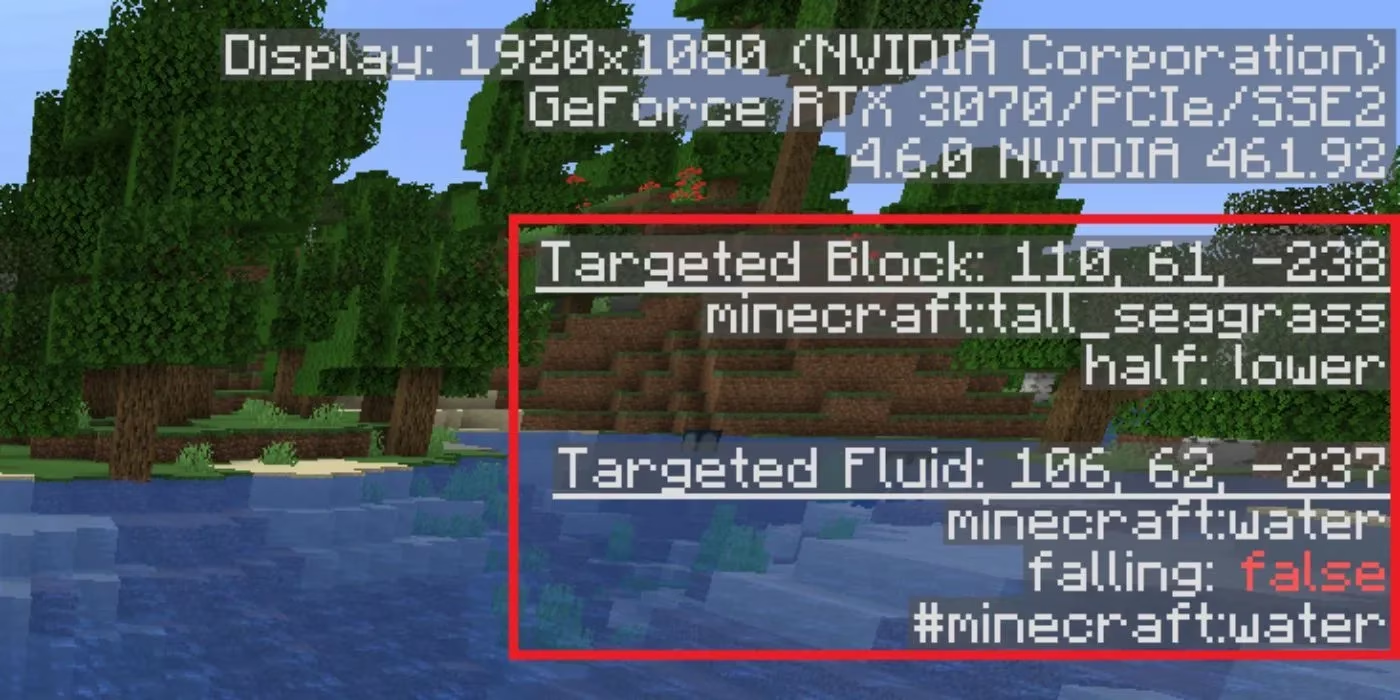
| Targeted Block, Fluid, or Entity | Crosshair data | Identifying exactly what the player is looking at |
The XYZ line is the navigator’s best friend. X represents the east-west axis, while Z represents the north-south axis. Facing data keeps maps honest, because Minecraft maps always place north at the top, south at the bottom, east on the right, and west on the left. Players who check Facing before following a map save themselves a surprising amount of wandering.
The E readout is subtler. The first number shows how many entities are rendered, and the second shows the total number nearby. If the first number jumps while the player looks around, a structure such as a dungeon may be close. Raising entity render distance makes that signal more precise. It is a bit like listening for a heartbeat in the blocky dark.
Light, Biome, and Local Difficulty
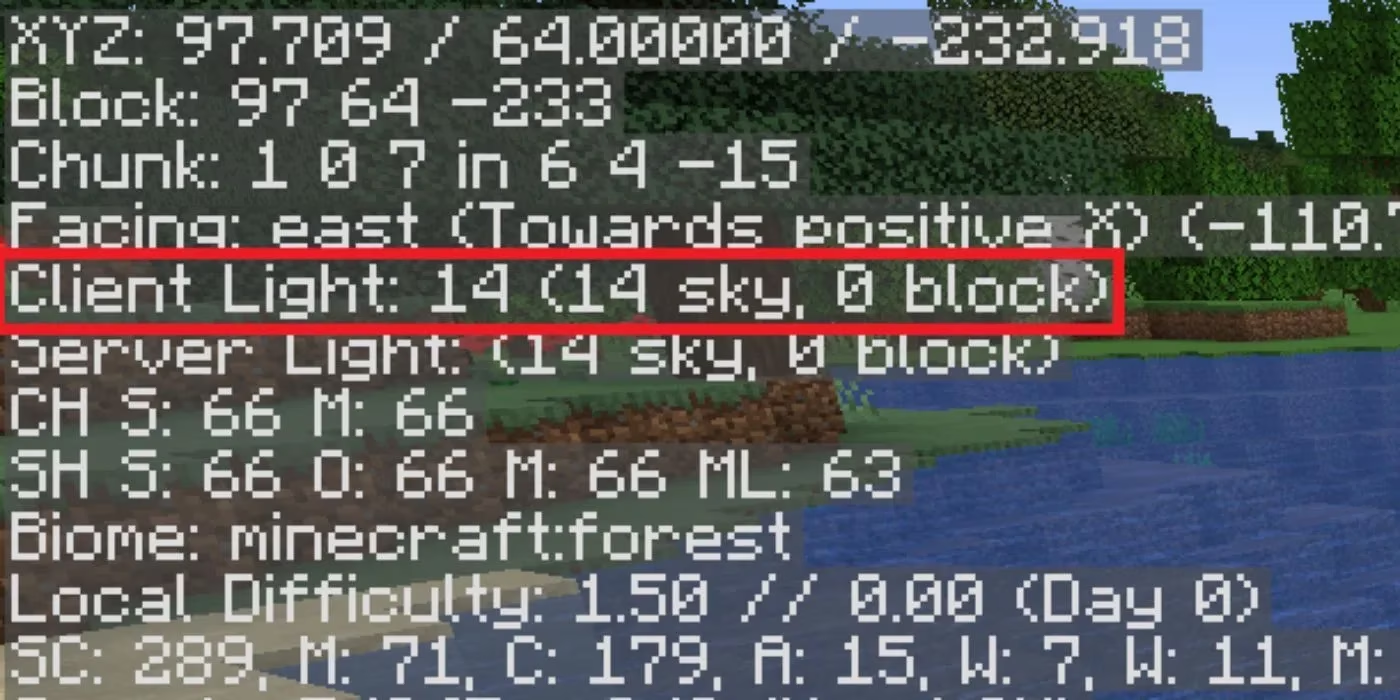
Client Light is one of the most practical readouts for base builders. The overlay splits light into sky light and block light, and hostile mobs care about the darker value. Values below seven are the danger zone in many spawn checks. A base can look cozy and still hide a spawnable corner. The debug screen turns that guesswork into a quick inspection.
Biome data matters because biomes are not always cleanly separated. They bleed into one another, and a tiny pocket can belong to a completely different biome than the surrounding land. That small detail can matter when a player is hunting a specific resource or confirming a location.
Local Difficulty is another underappreciated line. It ranges from 0.00 to 6.75 and grows based on factors such as how long a player has lived in a chunk, overall playtime, and even the phase of the moon. The overlay also shows how many days have passed in the world. It explains why an old base can feel harsher than a fresh one.
Memory, Targeting, and Practical Use
The right side of the screen is a small performance dashboard. Mem shows memory use first as a percentage and then as an actual amount. Allocated shows how much memory is already assigned to the game. Players who want to adjust memory settings benefit from knowing both numbers before changing anything.
The Targeted Block, Fluid, or Entity section follows the crosshair. If the player looks at a block, it shows block data. If the crosshair lands on a fluid or an entity, the label changes accordingly. This is useful for identifying unfamiliar blocks, checking entity details, or simply understanding what the game considers the current target.
A Tool, Not a Rule
The debug screen is especially valuable for mining, navigation, combat practice, technical builds, and performance checks. Coordinates and chunk borders make resource hunting more efficient, which is why some players consider the overlay close to cheating. Others see it as a fair part of Java Edition’s toolkit. Both views make sense. Not every player wants the wizard behind the curtain visible, and navigating by landmarks and instinct remains a valid way to play.
For players who enjoy precision, however, F3 is a game-changer. It rewards curiosity, supports faster learning, and leaves the rest to experimentation. The screen will not play the game for anyone; it simply hands over the map, the numbers, and a flashlight. The rest is left to the player’s own hands.